Convert MP3 to MIDI in GarageBand: A Verification Workflow
GarageBand does not turn an imported MP3 waveform into editable MIDI notes. Convert the MP3 with an audio-to-MIDI transcriber first, download the .mid, then import that MIDI into GarageBand as a software-instrument region and compare it with the original audio before you edit.
Dragging the MP3 into GarageBand gives you an audio region. Dragging the converted .mid gives you note events that can be opened in the Piano Roll.
Apple documents audio-file import and MIDI-file import as separate operations. On iPhone and iPad, imported MP3 audio is placed on an audio track, while imported MIDI is placed on a keyboard or drums track. A multitrack MIDI file can create multiple keyboard tracks. The Mac guide likewise lists audio and MIDI import separately and provides Piano Roll editing for MIDI regions.
That means changing an extension, bouncing an MP3, or dragging the waveform to a software-instrument track cannot recover notes. A transcriber must first estimate pitch onsets, durations, and timing and write them as MIDI events. GarageBand becomes the instrument, editor, and comparison workspace after that step.
Keep both files
The MP3 is the audible reference. The MIDI is an interpretation you can edit. Keeping both prevents a convincing instrument sound from hiding timing, register, or note-density mistakes.
Original reproducible method
Build a parallel reference project
Use a new GarageBand project for the first check. A clean project removes old plug-ins, automation, routing, and muted tracks from the diagnosis. Importing the source and result in parallel also makes every change reversible.
1. Choose a test passage
Start with a short passage whose lead part is easy to hear. Preserve the MP3 exactly as received. If a dense mix is the only source, decide which line you want before conversion; one useful melody is a clearer target than every sound in the mix.
2. Preserve the raw MIDI
Run the MP3 through the converter and download the first MIDI without editing it. Name the MP3 and MIDI as a pair. This untouched result is your rollback point if quantizing or deleting notes later makes the transcription worse.
3. Import source and result
On Mac, drag the MP3 into the Tracks area as audio, then drag the .mid into empty space so GarageBand creates a software-instrument track. On iPhone or iPad, use the Loop Browser's Files section; set the song section to Automatic before importing a longer file so the region is not clipped to the current section.
4. Align one clear attack
Choose one unmistakable sound near the start and align the first intended MIDI note to it. Do not quantize yet. A constant start offset is a region-position problem, while notes that gradually separate from the audio indicate tempo or timing drift.
Mute the MIDI track and confirm that the reference audio starts where expected. Then mute the audio and select a plain software-instrument patch for the MIDI. Finally, solo both in turn at the same playhead position. That three-listen sequence separates an import failure from a transcription problem.
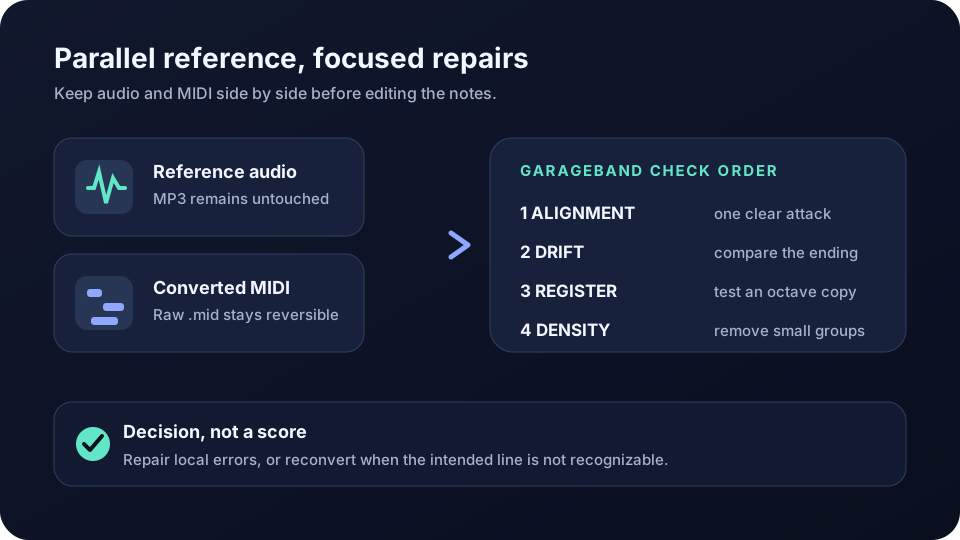
Keep the source audio and converted MIDI parallel, then diagnose alignment, drift, register, and note density in that order.
Original four-check audit
Fix the global mismatch before the local notes
Open the MIDI region in the Piano Roll, but do not begin by correcting the first wrong rectangle you see. Run these checks in order so one global mismatch does not become dozens of unnecessary edits.
Alignment check. Compare a clear attack near the beginning. If every MIDI note is early or late by roughly the same amount, move the region as one object. Do not move individual notes to compensate for a single offset.
Drift check. Compare another clear attack near the end. If the start aligns but the end does not, inspect the project tempo and the MIDI timing before quantizing. Quantization moves events toward the grid; it does not prove that the grid matches the source performance.
Register check. Listen to the melodic contour before moving pitches. If the shape is recognizable but consistently too high or low, test a reversible octave transposition on a duplicate region. If only scattered notes are wrong, repair those notes instead of shifting the whole line.
Density check. Look for several short MIDI notes where the MP3 has one stable tone, or events that appear only during drums, reverb, or overlapping instruments. Delete a small group, replay the same bar, and undo if the intended attack disappears. Keep the raw MIDI beside the edited copy.
Only after these four checks should you adjust note lengths, velocity, instrument choice, or detailed quantization. Those edits can improve playback, but they should not disguise a poor transcription. If the intended line is not recognizable, return to a cleaner source or a more isolated passage instead of polishing unrelated notes.
This workflow produces no accuracy score. Its output is inspectable evidence: paired source and MIDI files, a known alignment point, a drift observation, a register decision, and a list of local note repairs.
Mac versus iPhone or iPad
The handoff differs, but the verification logic stays the same
On Mac, Finder-to-Tracks-area drag and drop is the direct route for both files. On iPhone and iPad, save the MIDI in Files, open GarageBand's Tracks view, use the Loop Browser's Files tab, and drag the file to the intended bar. Apple warns that the current song section can limit how much of an imported file appears unless the section length is Automatic.
Whichever device you use, confirm that the imported result is a MIDI region with editable notes rather than another waveform. If you see audio again, you selected the MP3 rather than the downloaded .mid.
FAQ
Questions about MP3 to MIDI and GarageBand
Can GarageBand convert MP3 to MIDI by itself?
No. GarageBand imports MP3 as audio and imports existing MIDI as editable note regions; use an audio-to-MIDI transcriber before the MIDI import.
How do I convert MP3 to MIDI for GarageBand?
Convert the MP3 in an audio-to-MIDI tool, download the .mid, import both files into a clean project, and compare the MIDI with the source before editing.
Why did my MP3 stay a waveform in GarageBand?
Because importing MP3 creates an audio region, not MIDI notes. Select the converted .mid file to create a software-instrument region that opens in the Piano Roll.
Why is the imported MIDI cut off on iPhone or iPad?
The current song section may be shorter than the file. Apple recommends setting the song section length to Automatic before importing the full audio or MIDI file.
Should I quantize the converted MIDI immediately?
No. Check region alignment and later drift first. Quantizing too early can hide whether the project grid matches the source and can turn expressive timing into a different rhythm.