Audacity MP3 to MIDI: The Correct Converter-First Workflow
Audacity cannot analyze an MP3 waveform and create MIDI notes by itself. Convert the MP3 with an audio-to-MIDI transcriber first, then import the downloaded .mid file into Audacity as a Note Track beside the original audio for comparison, limited editing, and MIDI export.
If you opened an MP3 and found that Export MIDI was unavailable, nothing is missing from the menu: an audio track is not a MIDI Note Track.
Audacity's current manual describes MP3 and WAV files as audio imports. It describes MIDI and Allegro files as separate imports that create a Note Track. The Export MIDI command exports the selected Note Track, not an MP3 waveform.
That distinction explains the common dead end in old tutorials. Choosing an audio export header does not perform note detection. A musical MIDI file needs discrete note events; an MP3 contains sampled sound. Audacity can host both kinds of track, but the documented workflow does not turn one into the other.
Use Audacity after transcription
The Note Tracks manual specifically says a MIDI Note Track can be compared visually with sampled audio of the same music. It also documents limited cut, paste, and delete editing before MIDI export.
Original reproducible method
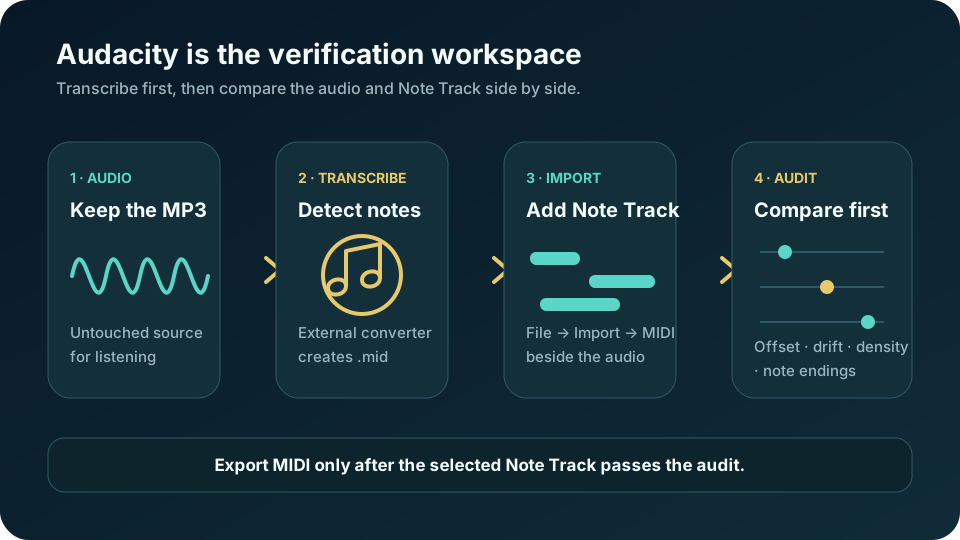
Build a two-track verification workspace
This method uses Audacity as a transparent inspection surface rather than pretending it is the transcription engine. Keep the source and result visible together so every correction can be tied to something you can hear.
1. Preserve the source
Import the MP3 into a new Audacity project and leave that audio track untouched. Rename it so the original is obvious. Do not normalize, stretch, trim, or add effects before the first comparison; otherwise you will not know whether a mismatch came from the recording, the converter, or your edit.
2. Create the MIDI outside Audacity
Send the same MP3 through an audio-to-MIDI transcriber. The local tool on this site processes the selected audio in the browser and returns a downloadable MIDI file. Preserve that first download as the untouched transcription, even if you already hear mistakes.
3. Import the result as a Note Track
In Audacity, use File > Import > MIDI for the downloaded .mid. The manual says this creates a Note Track. Keep it next to the original audio track. If the first intended attack does not line up, treat that as an alignment question before changing individual notes.
4. Separate inspection from repair
First pass: mark what is wrong without editing. Second pass: make only the limited cuts, pastes, or deletions Audacity supports for Note Tracks. If the result needs pitch changes, detailed note lengths, velocity work, or dense piano-roll repair, move the MIDI to a dedicated MIDI editor instead of forcing Audacity to be one.
Save the Audacity project as the comparison workspace, not as the final MIDI. When the selected Note Track is ready, use File > Export Other > Export MIDI. Audacity's manual notes that this command exports one selected Note Track and exports the entire track regardless of an audio selection.
Audacity is the comparison workspace in this route. The note transcription happens before the MIDI file is imported.
Original side-by-side audit
Use four passes to decide whether the MIDI is worth repairing
Do not start by deleting every suspicious block. Listen to the source and inspect the Note Track in four passes. Each pass answers a different question and prevents a global problem from being mistaken for hundreds of local mistakes.
Start-position pass. Find the first unmistakable attack in the audio and the first intended MIDI note. If every event appears early or late by a similar amount, correct the track position before touching note content. A constant offset is not a transcription full of bad rhythms.
Drift pass. Compare another clear attack near the end. If the beginning aligns but the later event does not, record the mismatch as drift. Deleting notes will not solve a timeline that gradually separates; test the MIDI in a fuller editor that exposes tempo and time scaling.
Density pass. Look for clusters of short notes around one audible tone, or notes that appear during noise, reverb, or overlapping instruments. These are candidate false detections. Remove only a small group, listen again, and keep the untouched MIDI available for reversal.
Ending pass. Compare audible releases with Note Track endings. A held note that stops too soon and a note that continues after the sound require different repairs. Audacity's limited Note Track editing may be enough for a simple deletion or splice; detailed duration work belongs in a MIDI editor.
Finish with a go/no-go decision. Continue repairing when the intended line is recognizable and the remaining problems are local. Reconvert from a cleaner or more isolated source when false notes dominate the track. Choose a multitrack or instrument-specific route when the required part is buried inside a full mix.
This audit does not produce an accuracy percentage. It produces inspectable evidence: the untouched MP3, the untouched MIDI, alignment observations, failure type, and the exact edits required for the intended use.
Avoid the SDS trap
A MIDI connection does not make every MIDI-named file a note sequence
Several search results still repeat an old route that exports MP3 audio with an SDS or MIDI Sample Dump header. That does not create the note events a piano roll or synthesizer expects. Audacity forum answers identify SDS as sample-audio transfer rather than musical note transcription, while the current manual documents musical MIDI export from an existing Note Track.
A useful check is simple: if a workflow never analyzes pitch and timing into discrete notes, it has not performed MP3-to-MIDI transcription. Start with a real transcriber, download a .mid, and only then use Audacity's Note Track functions.
FAQ
Questions about using Audacity with MP3 and MIDI
Can Audacity convert MP3 to MIDI directly?
No. Audacity can import MP3 audio and import an existing MIDI file as a Note Track, but its documented workflow does not transcribe the MP3 waveform into MIDI notes.
Why is Export MIDI grayed out in Audacity?
Export MIDI needs a selected MIDI Note Track. Opening only an MP3 creates an audio track, so first create a MIDI file with a transcriber and import it with File > Import > MIDI.
Is SDS the same as a playable MIDI note file?
No. SDS means MIDI Sample Dump Standard and carries sample audio through a MIDI-related protocol; it is not a transcription of the MP3 into note events.
Can I edit the converted MIDI inside Audacity?
Only in a limited way. The Audacity manual documents cut, paste, and delete operations for Note Tracks; use a dedicated MIDI editor when you need detailed pitch, duration, velocity, or piano-roll changes.
What should I do when the MIDI does not match the MP3?
Check constant offset, later drift, false-note density, and note endings separately. That sequence shows whether to align, repair, reconvert from a cleaner source, or switch to a more suitable transcription route.